Physical Address
17033 Neubrandenburg
Germany
Physical Address
17033 Neubrandenburg
Germany

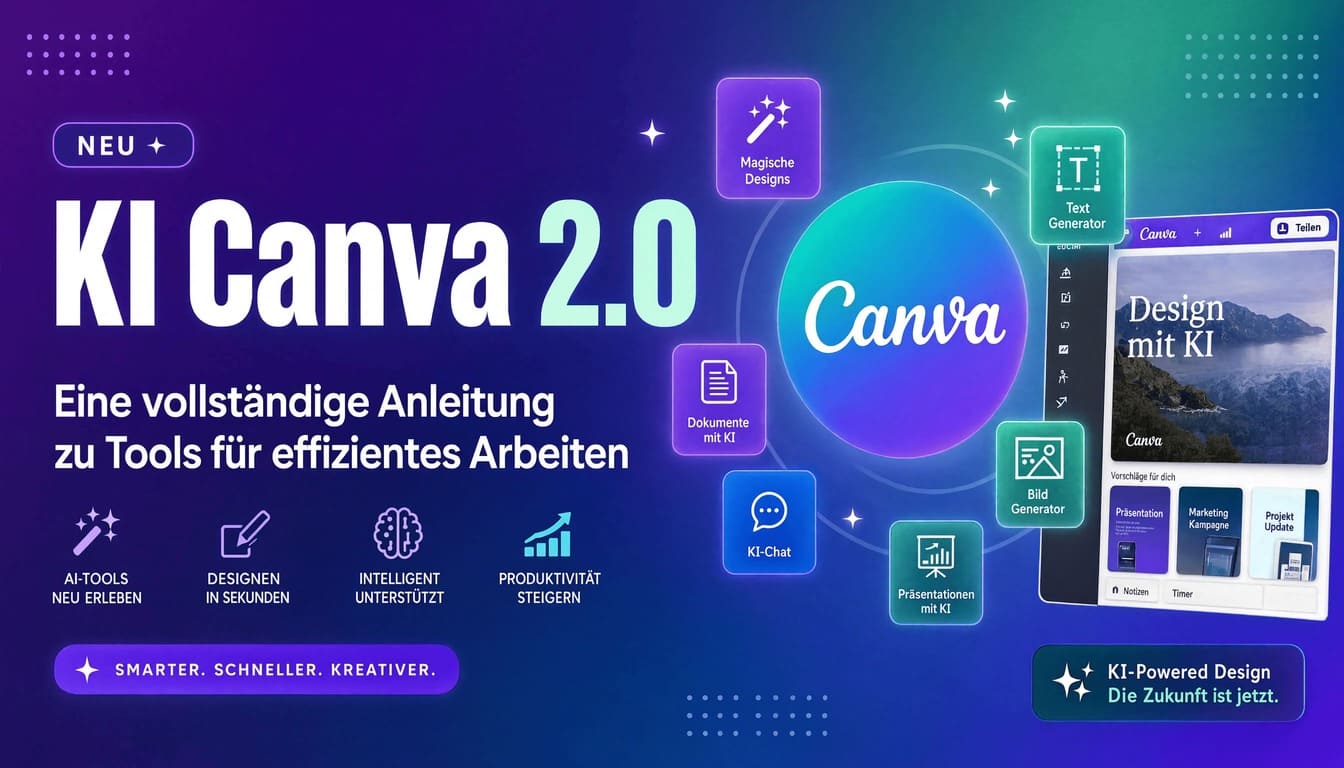
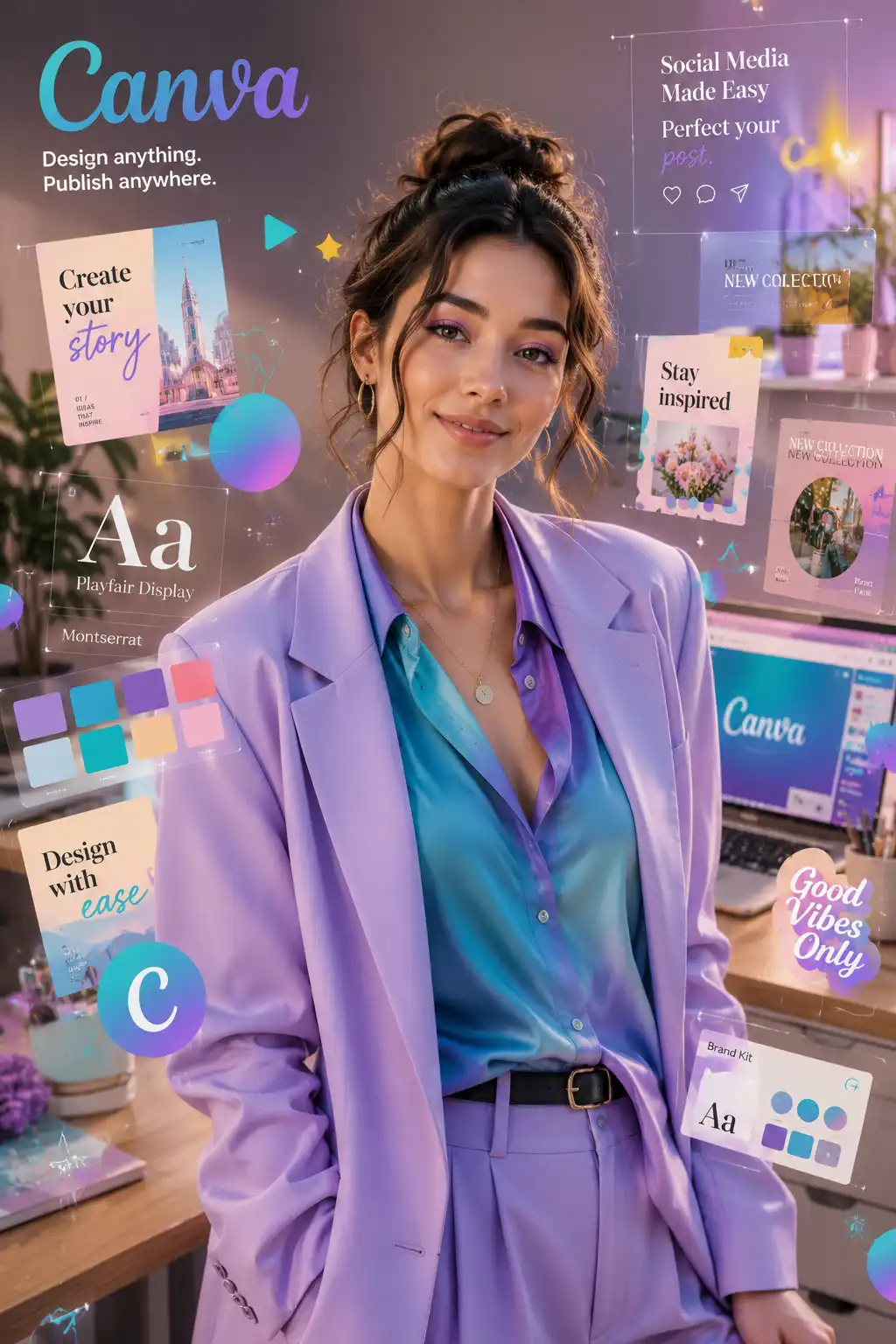
Welcome to your ultimate Canva reference guide – compiled specifically for designers and marketing professionals in the DACH region (Germany, Austria, and Switzerland). Whether it's AI-powered image generation, automated workflows, or localized German content: this cheat sheet guides you through the most important tools, features, and practical tips that will significantly simplify your creative work. We've researched the most relevant topics for the German-speaking market and presented them in a practical way – from automated translation to the correct display of umlauts in Canva fonts.
In recent years, Canva has evolved from a simple online graphic design tool into a comprehensive creative platform that covers virtually every aspect of visual marketing thanks to integrated AI features, a growing app library, and sophisticated automation options. This presents professional users in Germany, Austria, and Switzerland with enormous opportunities – but also the challenge of identifying and efficiently using the truly relevant tools within the abundance of available features.
This cheat sheet is divided into five practical chapters that guide you step-by-step through the most important areas. Each chapter contains concrete instructions, recommended tools, and immediately applicable tips that you can integrate into your daily work. Specifically for the DACH market, we have included guidance on localization, German fonts, and creating large quantities of content in German.
This cheat sheet is for anyone who uses Canva professionally – whether as a freelancer, in a marketing department, or at an agency. No prior knowledge of programming or AI technology is required. We explain all the concepts clearly and show you how to integrate the tools into your daily work. At the end of each chapter, you'll find practical recommendations that you can implement immediately.
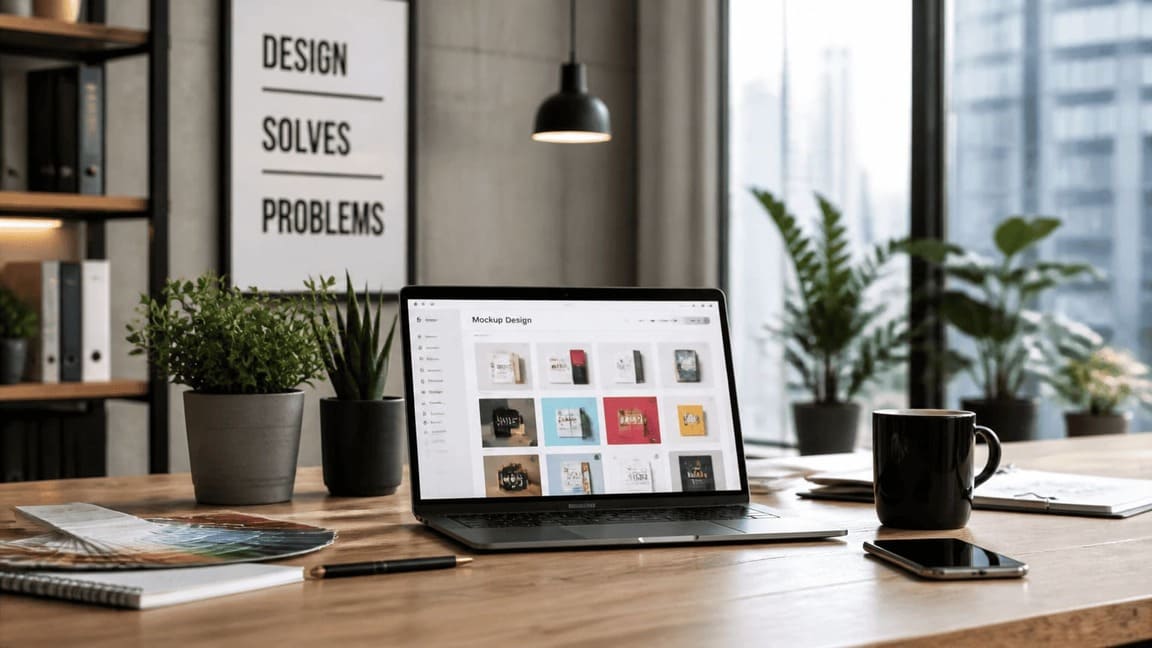
This cheat sheet is divided into five practical chapters that guide you from the basics of using AI to specific DACH localization tips. Each chapter contains concrete instructions, recommended tools, and directly applicable tips for your daily work. The chapters don't necessarily build on each other – you can also jump directly to the topic that interests you most at any given time.
The selection of topics is based on the most frequent search queries and key workflows of Canva users in German-speaking countries. We paid particular attention to the needs of marketing teams and designers who regularly create content for social media, print media, and digital campaigns. This incorporates both global Canva features and specific requirements of the DACH market – such as the correct handling of umlauts, adherence to German spelling conventions, and the adaptation of content to local cultural nuances.
A special focus is placed on practical applicability: Each tool and function is not only presented, but also accompanied by concrete use cases and step-by-step instructions. This allows you to immediately integrate the presented techniques into your existing workflows without lengthy training periods. The chapters on AI usage and automation, in particular, demonstrate how you can delegate repetitive tasks and gain more time for creative decisions.
The trendiest AI features in Canva – from Magic Write to image generators – and how to use them specifically for more efficient content creation.
Essential apps for automating image editing, background removal, and professional graphic optimization directly within Canva.
Advanced features such as bulk create, data import, and automated workflows for efficient mass production of content.
Tools for enlivening static designs – from animated posts and video elements to interactive presentations.
Specific tips for the German-speaking market: Umlauts, mass production in German and Instagram optimization for DACH target groups.
At the end of each chapter, you'll find a concise overview of the key points and further recommendations. Use this cheat sheet as a living document – come back to it whenever you have specific questions about a topic or want to explore new Canva features.
Artificial intelligence has fundamentally changed Canva. What used to require hours of manual work can now be automated with just a few clicks. The most important AI features in Canva are Magic Write (text generation), Magic Design (automatic layout suggestions), Magic Edit (image-based editing via text commands), and Magic Media (AI-generated images). These tools are integrated directly into the Canva interface and require no additional plugins or external software.
Magic Write is particularly useful for quickly creating headlines, social media captions, and product descriptions in German. The tool understands context and can adapt the tone to your target audience – from formal to casual. For users in Germany, Austria, and Switzerland (DACH region), it's recommended to explicitly instruct Magic Write in German and adjust it as needed, since the tool sometimes inserts Anglicized phrases. A good prompt, for example, would be: "Write a friendly Instagram caption in German for a sustainable fashion company, maximum 150 characters."„
Magic Design analyzes your uploaded content and automatically suggests suitable layouts – ideal for users who want to achieve professional results quickly without design expertise. Magic Edit allows you to modify image content using text commands: "Replace the background with a sunny meadow" or "Add a red hat." Magic Media generates entirely new images from text descriptions and is particularly suitable for replacing stock photos or creating conceptual visualizations.
AI-powered text generation – ideal for captions, headlines, and product descriptions in German. Supports various tones and language styles.
Automatic layout suggestions based on your content. Saves time on initial design decisions and provides professional starting points.
Modify image content using text commands. Replace, add, or remove elements in photos without Photoshop knowledge.
AI-generated images from text descriptions. Perfect for unique visuals when no suitable stock photo is available.
A common mistake when using AI tools in Canva is using overly vague prompts. The more precise your instructions, the better the result. Always specify the context, target audience, tone of voice, and format. For German texts, it's also recommended to explicitly point out correct grammar and spelling, as AI tools sometimes produce incorrect declensions.
Pro tip: Use Magic Write in combination with Canva's German spell checker. Generate texts in German and then have them automatically corrected – saving you time on proofreading.
Canva offers a growing library of integrated apps that automate specific tasks in image and graphic editing. For designers who regularly work with photos, the following apps are indispensable: Background Remover (background removal in seconds), Smart Resize (automatic adjustment to different formats), Photo Effects (filters and color correction), and mockup generators for product presentations.
The Background Remover is one of the most frequently used features in Canva and works with remarkable precision – even with complex hairlines or transparent objects. For e-commerce designers, this feature is invaluable: product photos can be embedded directly into marketing materials without time-consuming background removal. The app automatically detects the main subject and removes the background in seconds. The result can be manually refined if needed, which is particularly helpful for challenging images with similar color gradients.
Smart Resize (also known as "Magic Switch") is an absolute must-have for marketing teams producing content for multiple platforms. A single design can be converted into different formats with a single click – from Instagram post to story, from LinkedIn banner to Facebook ad. The app intelligently adjusts layouts while maintaining the visual hierarchy. For teams in Germany, Austria, and Switzerland (DACH region) running cross-platform campaigns, Smart Resize significantly reduces production effort.
Create a master design in 1080×1080 px format (Instagram Post). Then use Smart Resize to automatically generate variations for Stories (1080×1920 px), LinkedIn (1200×627 px), and Facebook Ads (1200×628 px). Finally, simply adjust the text sizes – this saves up to 701 TP3T of production time.
For product photos, the following sequence is recommended: First, apply Background Remover, then color correction with Photo Effects, and finally embed in a mockup. This workflow delivers consistent, professional results.
Canva's mockup feature is particularly relevant for marketing teams in Germany, Austria, and Switzerland (DACH region) who regularly need product visualizations for online shops, catalogs, or social media. Canva offers a wide selection of realistic mockup templates – from T-shirts and mugs to smartphone screens. Simply upload your design, select a mockup, and Canva will automatically adjust the image to the perspective and lighting of the chosen object.
For more complex projects, Canva offers powerful automation features that are especially indispensable for mass content production. The "Bulk Create" function allows you to automatically generate hundreds of designs from a CSV or Excel spreadsheet – ideal for personalized certificates, name badges, product cards, or seasonal campaigns with varying content.
The bulk create workflow works as follows: First, create a master design with placeholders for the variable content (e.g., name, date, product name). Then, connect these placeholders to the columns of your data table using the "Link Data" feature. Canva then automatically generates a design for each row of your table. This process, which would take hours manually, is completed in just a few minutes. Bulk create is a game-changer, especially for marketing teams that regularly need to produce large quantities of personalized content.
In addition to bulk creation, Canva also offers the ability to create and manage designs programmatically via the Canva API. For advanced users and development teams, this opens up the possibility of integrating Canva into existing workflows and CMS systems. The API supports the creation, editing, and exporting of designs, as well as the management of brand kits and team libraries.
A common use case for bulk create in the DACH region is the creation of personalized event materials: tickets, name badges for conferences, customized vouchers, or training certificates. The function is also valuable in e-commerce – for example, for the automatic generation of product cards with varying prices, descriptions, or SKU numbers.
Generate hundreds of designs automatically from a data table. Ideal for personalized content, certificates, and product cards. Saves hours of manual work.
Integrate Canva into existing systems and workflows. Create and manage designs programmatically – especially useful for agencies with many clients.
Ensure all team members use consistent brand elements. Define permitted colors, fonts, and logos for your team.
Static designs are a thing of the past – modern marketing communication thrives on movement and interaction. Canva offers a growing range of animation and video tools that allow you to transform simple designs into vibrant, attention-grabbing content. Key features include: Animate (motion effects for elements), Video Editor (cutting and timeline), Transitions (transitions between pages), and Audio Integration (background music and voiceover).
Canva's Animate feature is surprisingly powerful and covers most social media animation needs. A variety of animation styles are available, including "Appear," "Fade," "Rise," "Float," and many more. Combining different animations for various elements within a design is particularly effective—for example, a fading background with rising text. For Instagram Stories and Reels, it's recommended to use animations sparingly and limit yourself to a maximum of two to three different effects per design to avoid an overwhelming look.
The integrated video editor allows you to cut, trim, and enhance video clips directly within Canva, adding text overlays, music, and effects. This is especially useful for teams that previously needed multiple tools for graphics and video. With Canva, you can now manage the entire production workflow—from graphic design to finished video—within a single platform.
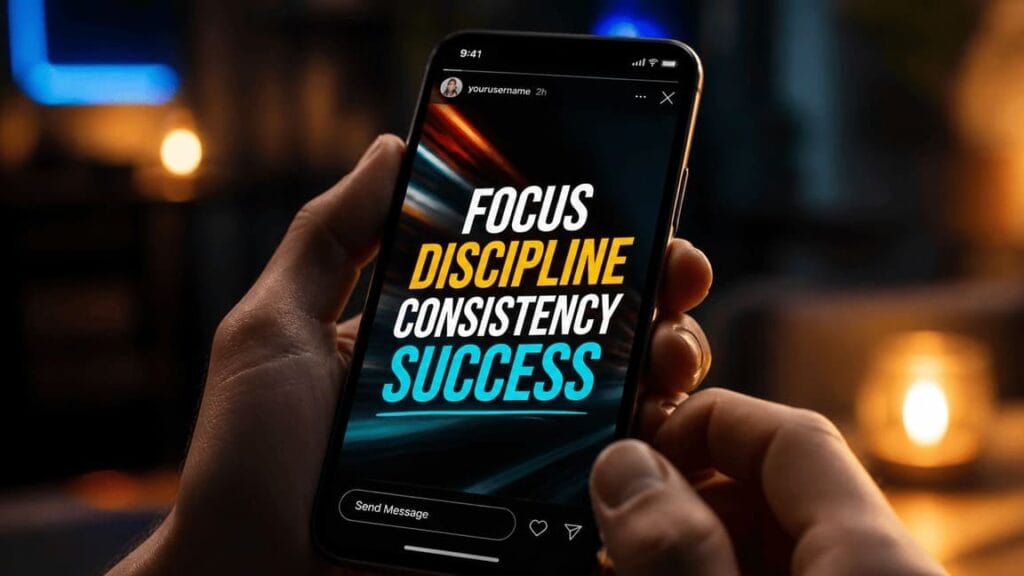
Add motion effects to text, images, and elements. Choose from over 20 animation styles and customize the duration and timing.
Cut, trim, and edit video clips directly in Canva. Add text overlays, music, and transitions—all in one platform.
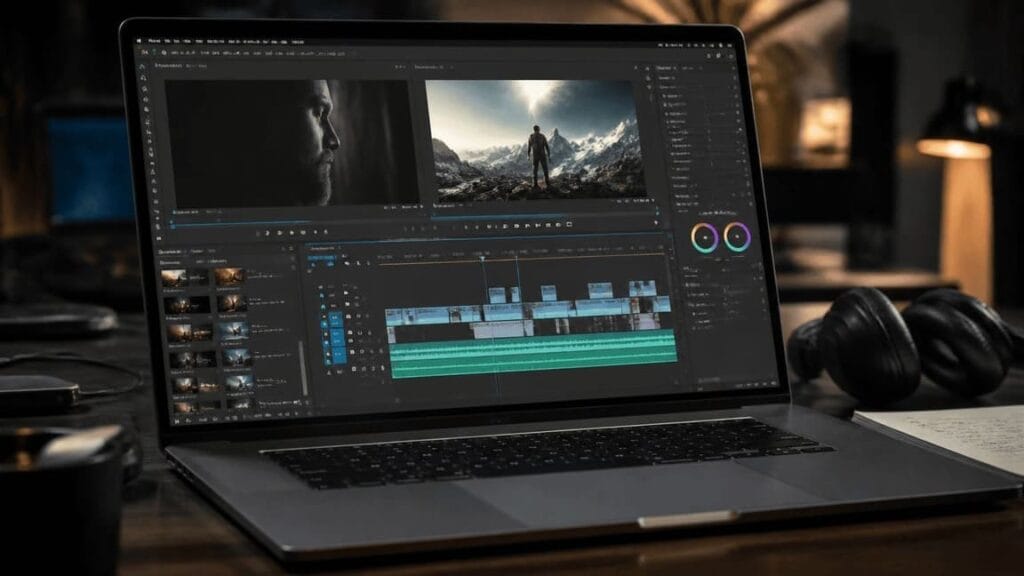

Create animated stories and reels in the correct format size. Use pre-made templates and customize them to your brand with one click.
An important performance note: Always test animated content before exporting, especially if you're optimizing it for different platforms. What looks smooth on a desktop might look different on mobile devices. Canva offers a preview function that lets you test animations on various screen sizes. Use this feature consistently before publishing your content.
Best Practice: For Instagram Stories, a maximum length of 15 seconds per slide is recommended. Use the "Magic Animate" feature to automatically generate suitable animations for all elements of your design – this saves time and delivers consistent results.
The German-speaking market has specific requirements for design, language, and content strategy. Anyone who wants to communicate successfully in the DACH region needs to do more than simply translate texts – it's about cultural nuances, formal address, correct grammar, and local trends. Canva offers a range of features and settings that you can use to your advantage.
A key issue for users in Germany, Austria, and Switzerland (DACH region) is the correct display of umlauts (ä, ö, ü) and the Eszett (ß) in Canva fonts. Not all fonts in the Canva library fully support these special characters – especially with decorative display fonts, umlauts may be displayed as simple vowels without dots or as question marks. This is a common error that can significantly impact the professionalism of your designs. We therefore recommend always conducting a test with all relevant special characters before making your final font selection.
Another important aspect is the mass creation of content in German. While Canvas AI tools can generally understand and generate German, the quality is not always consistent. Especially with longer texts or complex sentence structures, AI-generated German texts tend to use Anglicisms or unnatural phrasing. A structured review process with native speaker verification is therefore essential.
Use Bulk Create with German CSV data. Ensure correct encoding (UTF-8) and test special characters before bulk export.
Write your Magic Write prompts explicitly in German. Specify your tone, target audience, and format to achieve better results.
Test each font with an umlaut check (äöüß) before use. Recommended fonts: DM Sans, Inter, Playfair Display.
Use Canva apps like "Social Media Scheduler" and "Hashtag Generator" with German settings for optimal reach in the DACH region.
Cultural differences within the DACH region should also be taken into account. What works well in Germany won't necessarily resonate in Austria or Switzerland. Subtleties in word choice, imagery, and humor vary between the three countries. A good approach is to keep core messages consistent but make local adjustments for each target market—for example, for holiday campaigns, regional references, or seasonal themes.
One of the most common problems when working with German text in Canva is the incorrect rendering of umlauts and the Eszett (ß). Many designers only discover this issue shortly before exporting, when ä, ö, ü, and ß appear as empty boxes, question marks, or simple vowels without diacritics. This problem primarily affects decorative display fonts and some older fonts in the Canva library that were originally designed for the basic Latin alphabet.
The solution is simple, but requires a consistent workflow: Before making your final selection, test every font you intend to use in a German design with a full umlaut test. To do this, simply enter the sentence "Size Apples Opening Exercise" into a text field and check whether all special characters are displayed correctly. This test only takes a few seconds, but can prevent costly revisions before printing or exporting.
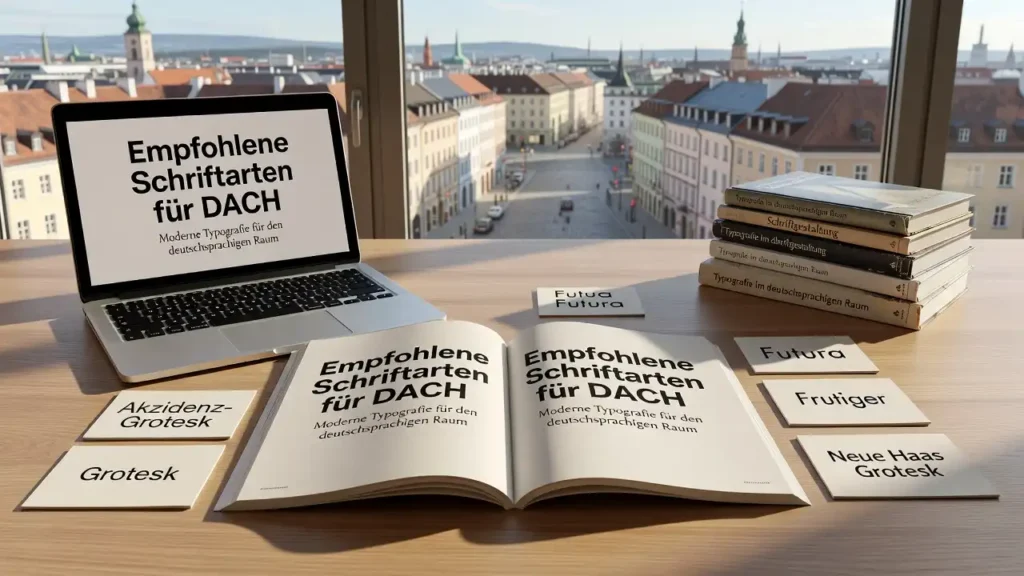
The following fonts in Canva reliably support all German special characters and are ideally suited for professional DACH designs:
Modern sans-serif typeface, highly legible on screens. Ideal for digital campaigns and social media.
Technically optimized font with excellent umlaut rendering. Perfect for UI designs and presentations.
Elegant serif font for headlines. Supports all German special characters and has a high-quality look.
A classic, versatile typeface. Proven suitable for body text and longer German content.
Before you finally use a font, test these characters:
Test set: „"Size Opening Exercise Apples"“
If all characters are displayed correctly, the font is certainly suitable for German texts.
A common mistake is using fonts imported into Canva from third-party providers or external sources. These custom fonts don't always have complete character sets. If you upload your own fonts, be sure to check the license terms and character set. Canva Pro users can upload custom fonts—make sure they are OpenType or TrueType fonts with a full Latin character set.
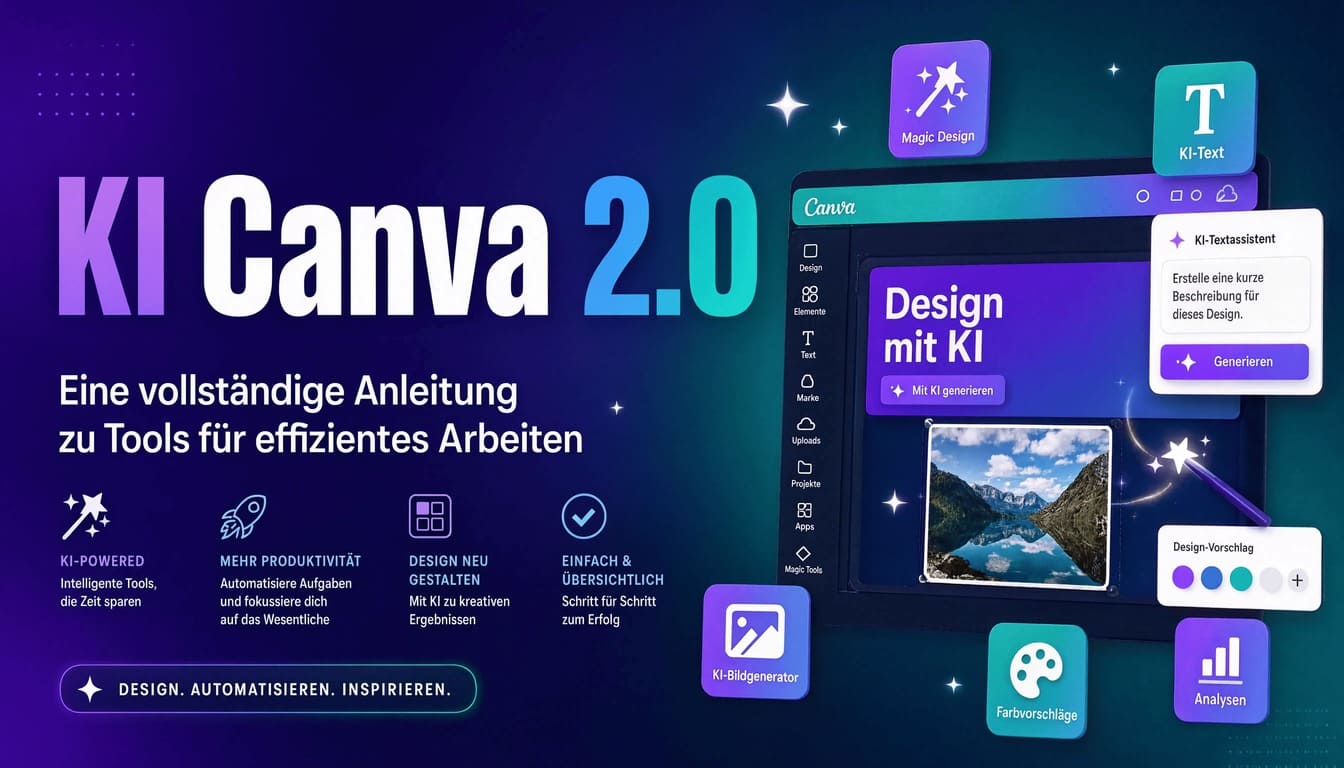
Instagram is one of the most important marketing platforms in the DACH region, and Canva offers a range of specialized apps and features that make Instagram content production significantly more efficient. From automatic format adjustments and hashtag generation to direct publishing – the entire Instagram workflow can be mapped in Canva.
Canva's most important core feature is its Instagram template system. The platform offers hundreds of pre-made templates in the correct Instagram formats: Post (1080×1080 px), Story (1080×1920 px), Reel (1080×1920 px), and IGTV cover (1080×1920 px). These templates can be customized with your brand colors and fonts with a single click. For marketing teams in the DACH region (Germany, Austria, and Switzerland), it's recommended to develop a consistent template system that is recognizable across all posts.
Canva integrates with Instagram via its direct publishing feature or through third-party apps like Later, Buffer, or Planoly, all of which are compatible with Canva. Direct publishing allows you to post designs directly from Canva to your Instagram account – including captions, hashtags, and location tags. This eliminates the manual download and upload step and reduces potential errors.
Use the pre-made Instagram templates in Canva and customize them with your brand kit. Create a consistent grid layout for your feed.
Canva apps like "Hashtag Generator" help you research relevant German hashtags. Combine niche and volume hashtags for maximum reach in the DACH region (Germany, Austria, Switzerland).
Plan and publish Instagram posts directly from Canva. Use the content planning feature for a consistent posting strategy.
Connect Canva to Instagram Insights to track the performance of your designs. Optimize based on data to identify which visuals achieve the best engagement rates.
For your Instagram strategy specific to the DACH region, remember: German users respond particularly well to authentic, informative content with clear added value. Overly sales-oriented posts tend to perform worse in the DACH region than educational or entertaining content. Use Canva to create carousel posts that visually present complex topics – these achieve above-average engagement rates in the German market.
DACH Instagram tip: Posting times for the DACH region: Monday to Friday between 8:00–10:00 a.m. and 6:00–8:00 p.m. achieve the highest reach. Sunday evenings are particularly strong for lifestyle and food content.
You now have a comprehensive overview of the most important Canva features for designers and marketing professionals in the DACH region. From AI-powered content creation and photo apps to automation and specific localization tips for the German-speaking market – this cheat sheet has covered the most relevant topics. The key to success now lies in consistently using these tools in your daily workflow.
The most effective approach is not to try to implement all the tools at once. Start with one or two areas that offer the greatest leverage for your current work. For example, if you spend a lot of time manually editing images, start with the photo apps (Background Remover and Smart Resize). If you regularly produce large amounts of personalized content, Bulk Create is the right starting point. Those who want to professionalize their social media presence should begin with the Instagram templates and the Content Scheduler.
Test Background Remover and Smart Resize – these two apps will instantly save you time on any project.
Configure Magic Write for German texts and experiment with specific prompts.
Set up Bulk Create for recurring content types – especially effective for personalized content.
Perform umlaut checks for all fonts and optimize German AI prompts.
Another important step is documenting your own best practices. Create an internal brand guide document in Canva that captures your preferred fonts, color palettes, template structures, and AI prompt templates. Share this document with your team using the Canva team feature to ensure consistent results across all projects and team members. Brand Controls in Canva Pro help automatically enforce adherence to these standards.
Canva is constantly evolving – new AI features, apps, and integrations are added regularly. Stay up to date by following the Canva blog and checking for "What's New" markers in the app. Many updates bring specific improvements for the German-speaking market, including enhanced German AI models and new templates relevant to the DACH region (Germany, Austria, and Switzerland).
„"The best designers aren't those who know the most tools – they're those who consistently and creatively use the right tools." – Canva Design Philosophy
This cheat sheet provides the foundation for using Canva at a professional level. Return to the individual chapters if you have specific questions or discover new features. The best way to master Canva is by doing – open a new design now and try out one of the tools presented. →How about this? →Google Flow Tools